EzSub Claude Session Key guide: how to copy and enter it

When you need to enter your Claude Session Key on an EzSub product page, follow these steps to install the extension, copy your session information, and paste it into the appropriate field.
If you need to open the product page first, go to the Claude top-up page. If it is already open, follow the steps below.
Jump to: Before you start · Install the extension · Open the extension · Copy the Session Key · Enter the Session Key
Before you start
Use a desktop browser and sign in to the Claude account you want to top up in that same browser before you start.
Your Session Key is login session information. Keep it private: do not post it publicly, send it to unrelated people, or include it in unredacted screenshots. Enter it only on an EzSub page after checking the URL.
Step 1: Install the extension
Open the Claude Session Key extension page and check that the extension name is correct and the provider is niccolosabato.
Click the installation button at the top right, then follow your browser's prompts to complete the installation.
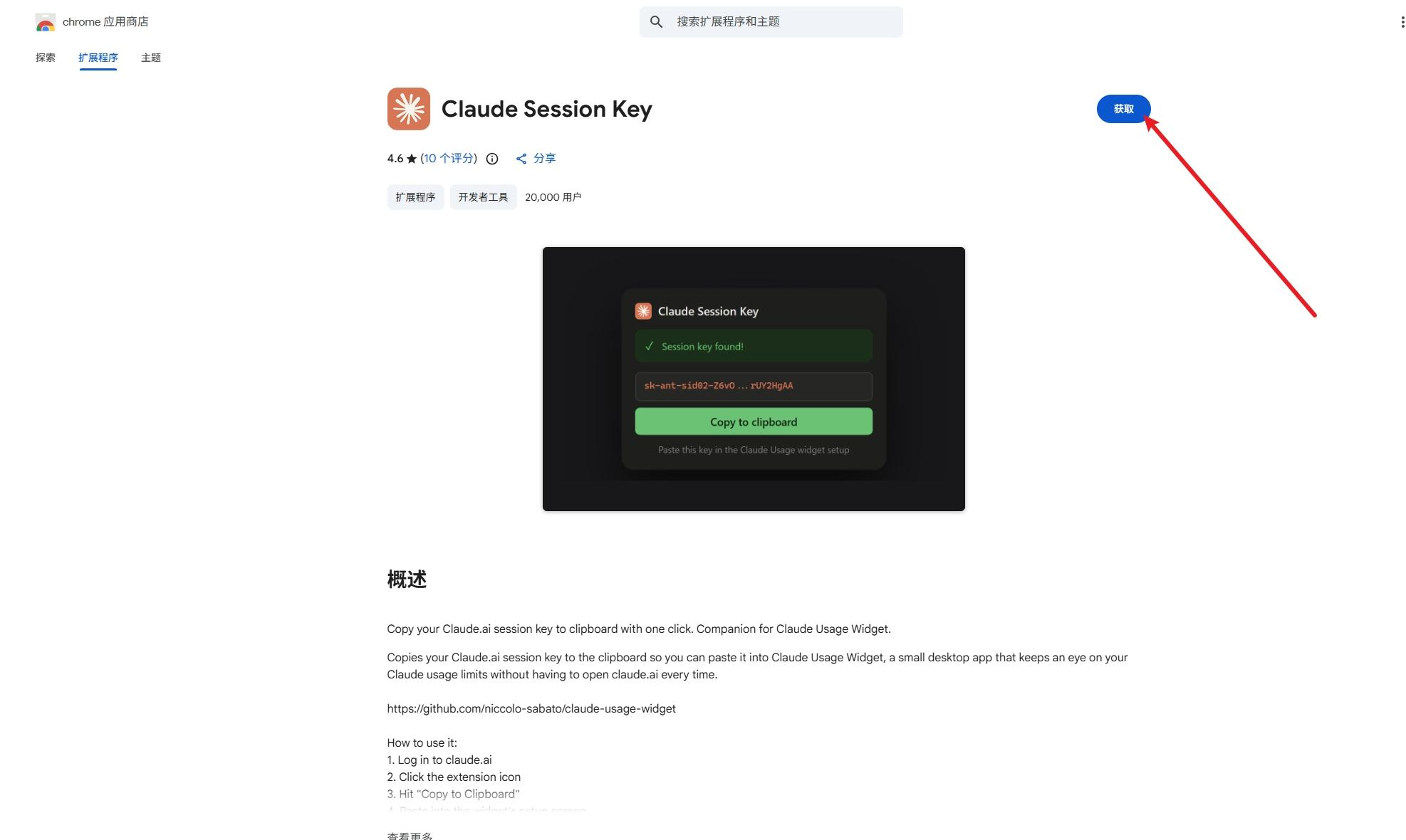
Step 2: Open the extension
After installation, click the extensions icon at the top right of your browser, then find and select Claude Session Key.
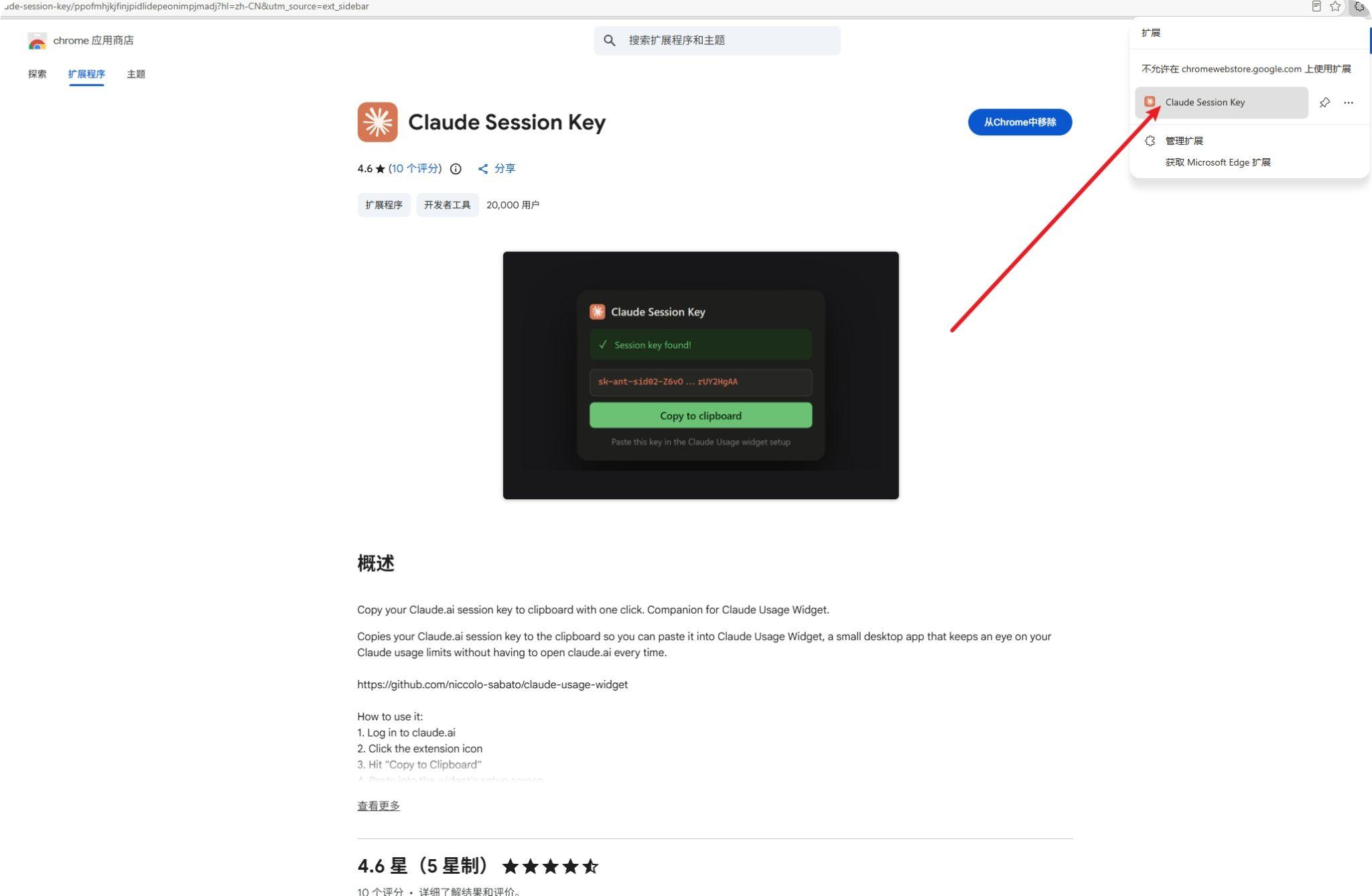
Step 3: Copy the Session Key
Open the extension and check that it reports the Session Key was retrieved successfully. Then click the green "Copy to clipboard" button.
Copy the entire Session Key without removing, omitting, or adding any characters.
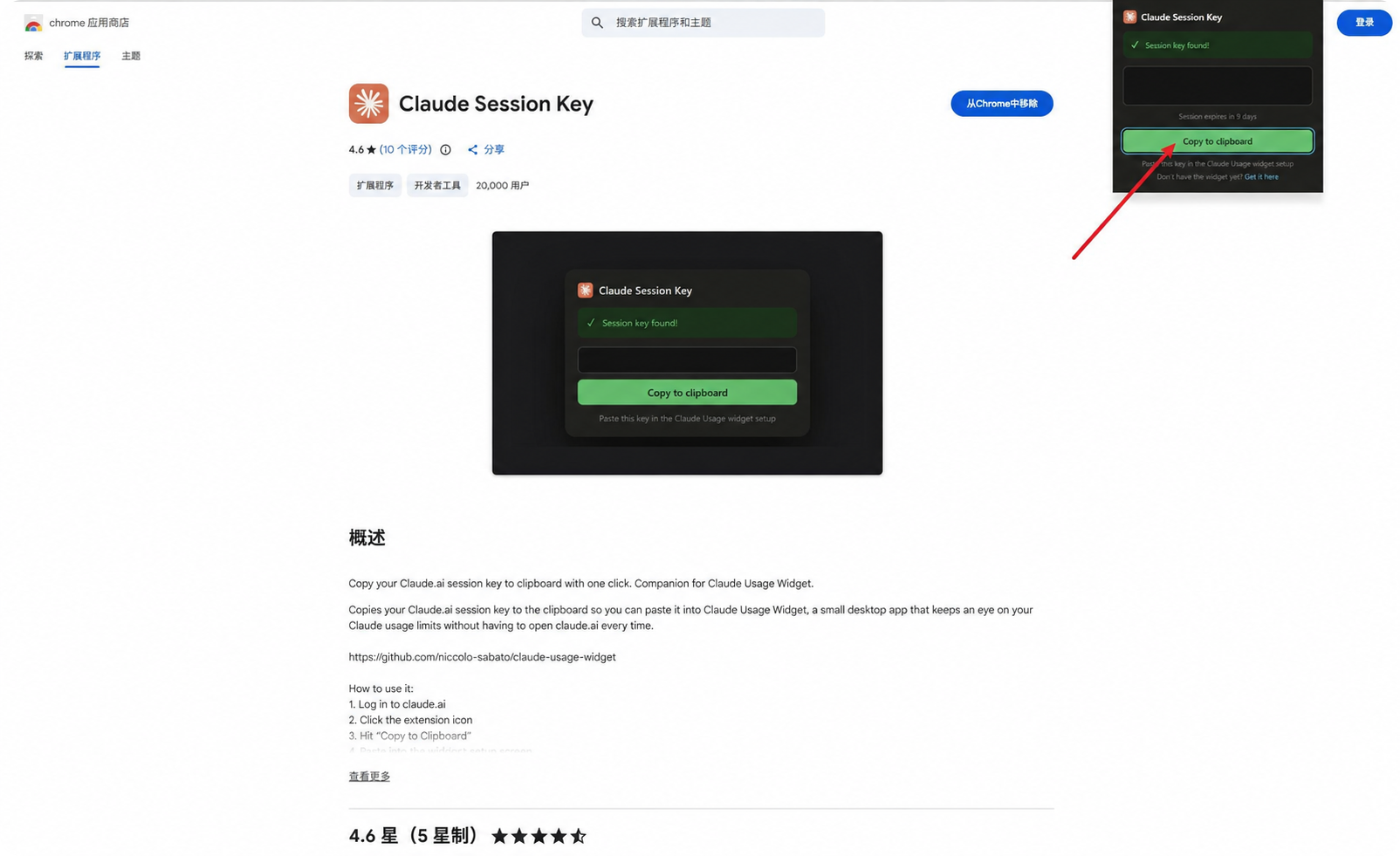
Step 4: Enter the Session Key
Return to the EzSub product page and paste the complete value into the Claude Session Key field. Fill in the other required top-up information, check the target account, then submit.
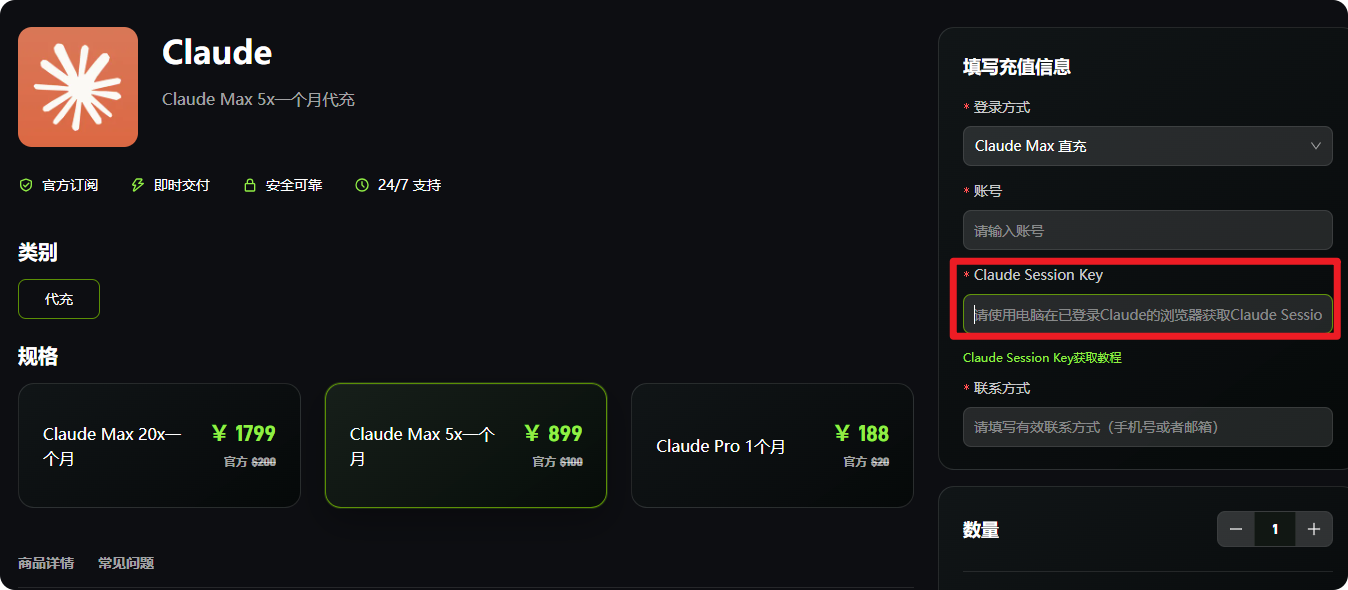
• Retrieve the key in a desktop browser that is already signed in to the target Claude account.
• If the extension cannot retrieve the Session Key, first check that you are signed in to the correct account in that browser.
To view or choose a plan, return to the Claude top-up page.