EzSub Claude Organization ID guide: where to find and copy it
When you need to enter your Claude Organization ID on EzSub, you can find and copy it in your Claude account settings. These steps follow the desktop web interface.
If you need to open the product page first, go to the Claude top-up page. This guide shows where to find the Organization ID.
Jump to: Before you start · Open settings · Open Account · Copy the Organization ID · Check before entering
Before you start
Open Claude in a desktop browser and check that you are signed in to the account whose Organization ID you need.
Step 1: Open settings
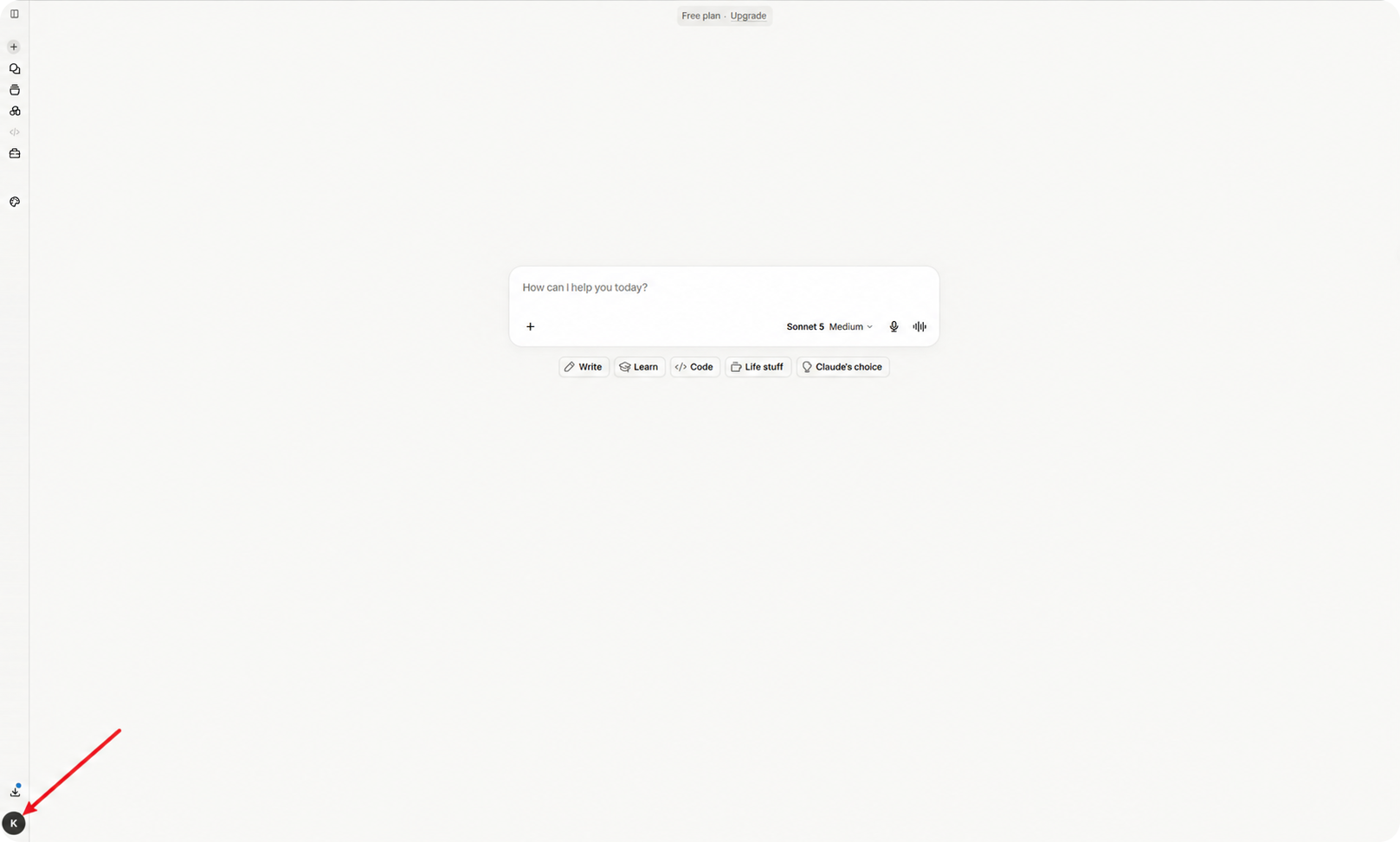
Click your profile picture at the bottom left to open the account menu.
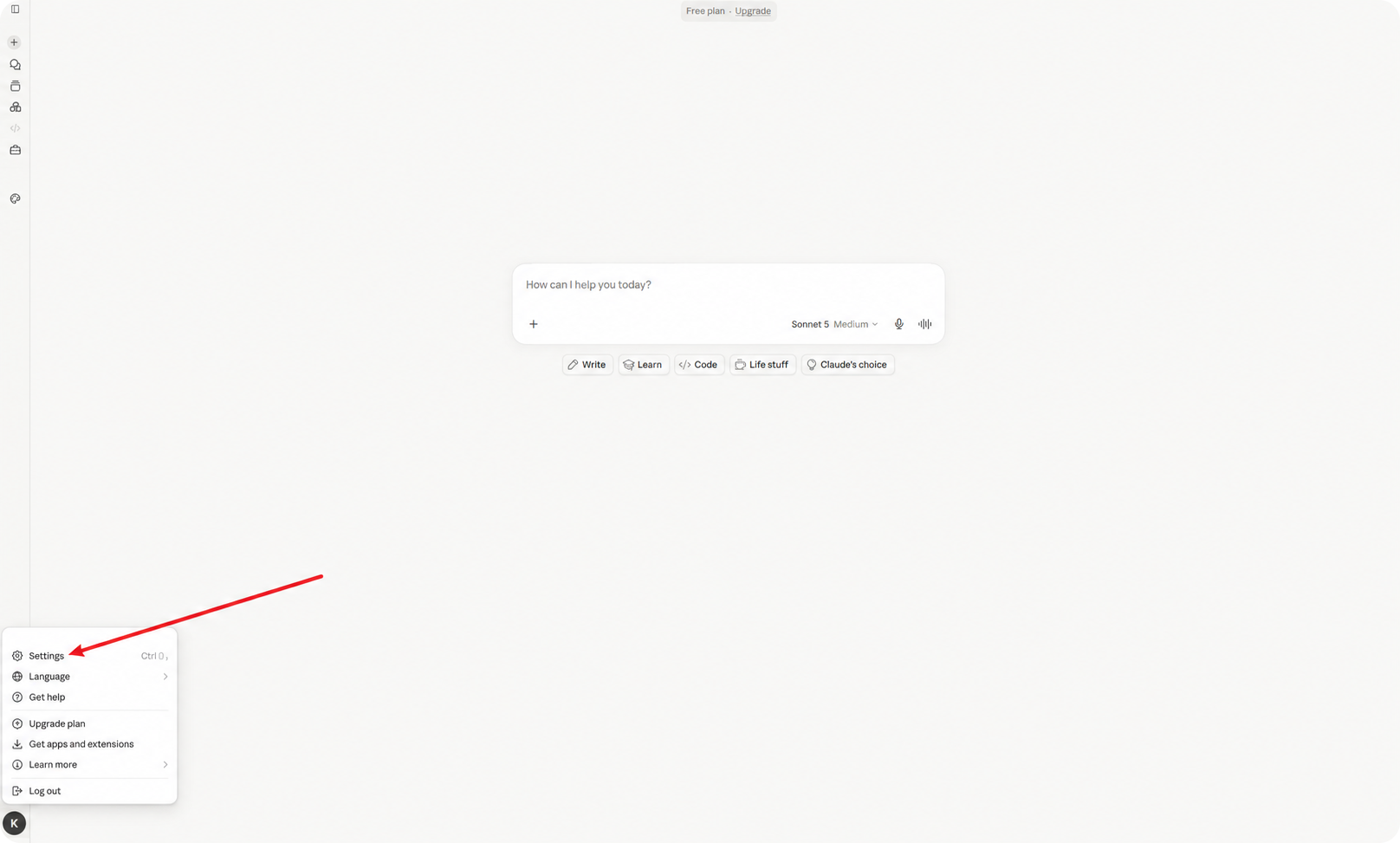
In the account menu, click Settings.
Step 2: Open Account
In the left-hand menu of the settings page, click Account.
Step 3: Find and copy the Organization ID
On the Account page, find the Organization ID field in the middle of the page and copy its value.
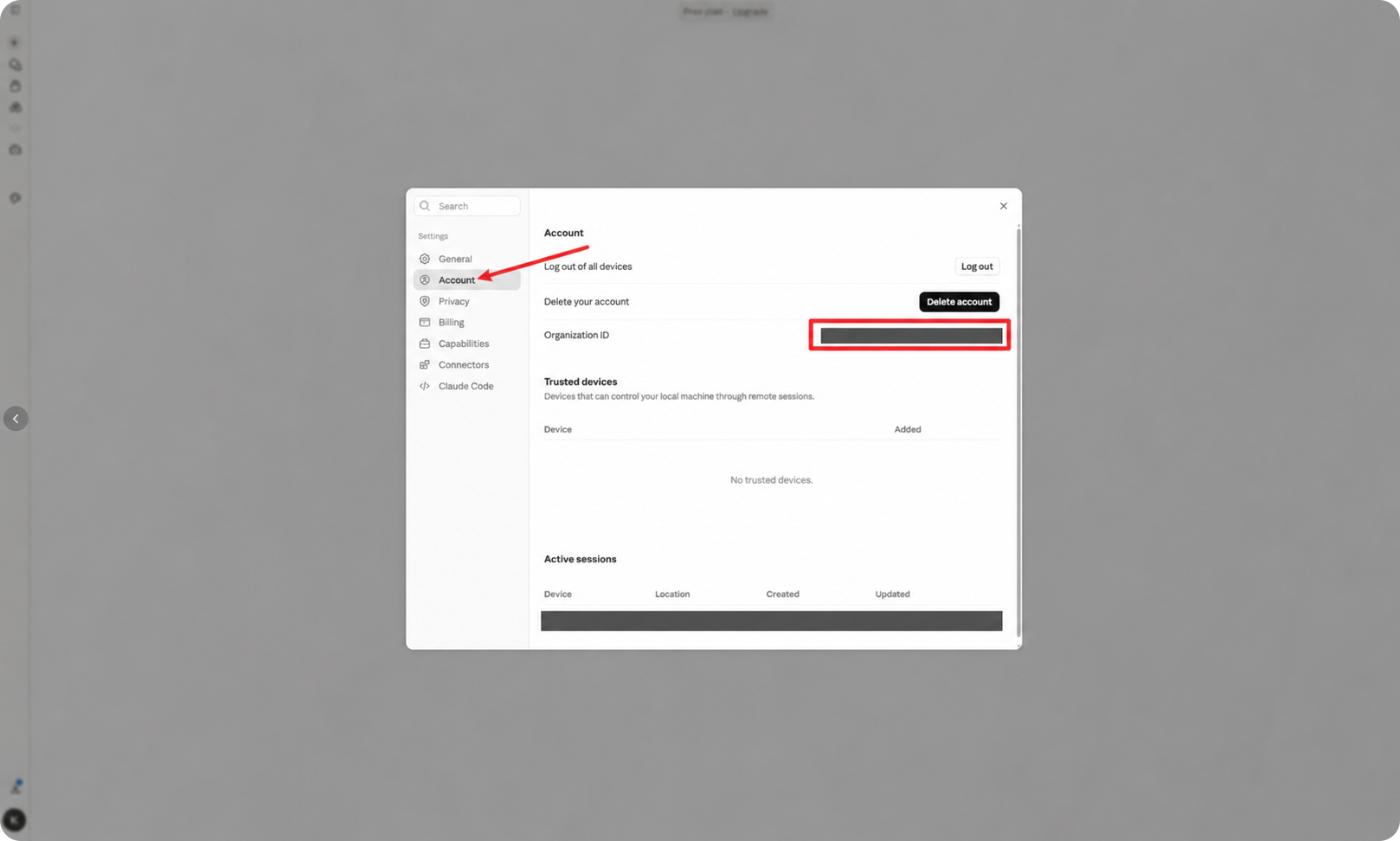
The Organization ID identifies the current organization. Copy the value shown in the settings of the account you intend to top up, then return to the page that asks for it.
Check before entering
• If you cannot find the Organization ID, first check that you are signed in to the correct account.
• Keep this identifier private. Do not publicly share screenshots that show the full value.
• Organization ID and Session Key are different fields. Do not use one in place of the other.
To view or choose a plan, return to the Claude top-up page.