How to Turn On Google 2-Step Verification and Save Backup Codes
To turn on Google 2-Step Verification, open your account security settings and follow the prompts to set up a second verification method. Then get and save backup codes so you can sign in when your usual verification method is unavailable.
Jump to a step
Step 1: Sign in to your Google Account
Step 2: Open your security settings
What is 2-Step Verification?
2-Step Verification adds protection to your account. When you sign in with a password, Google may also ask you to confirm your identity through a second method, such as a Google prompt or a phone verification code. This extra check helps protect your account if someone gets your password.
Step 1: Sign in to your Google Account
1. Open the Google homepage or the Google Play Store.
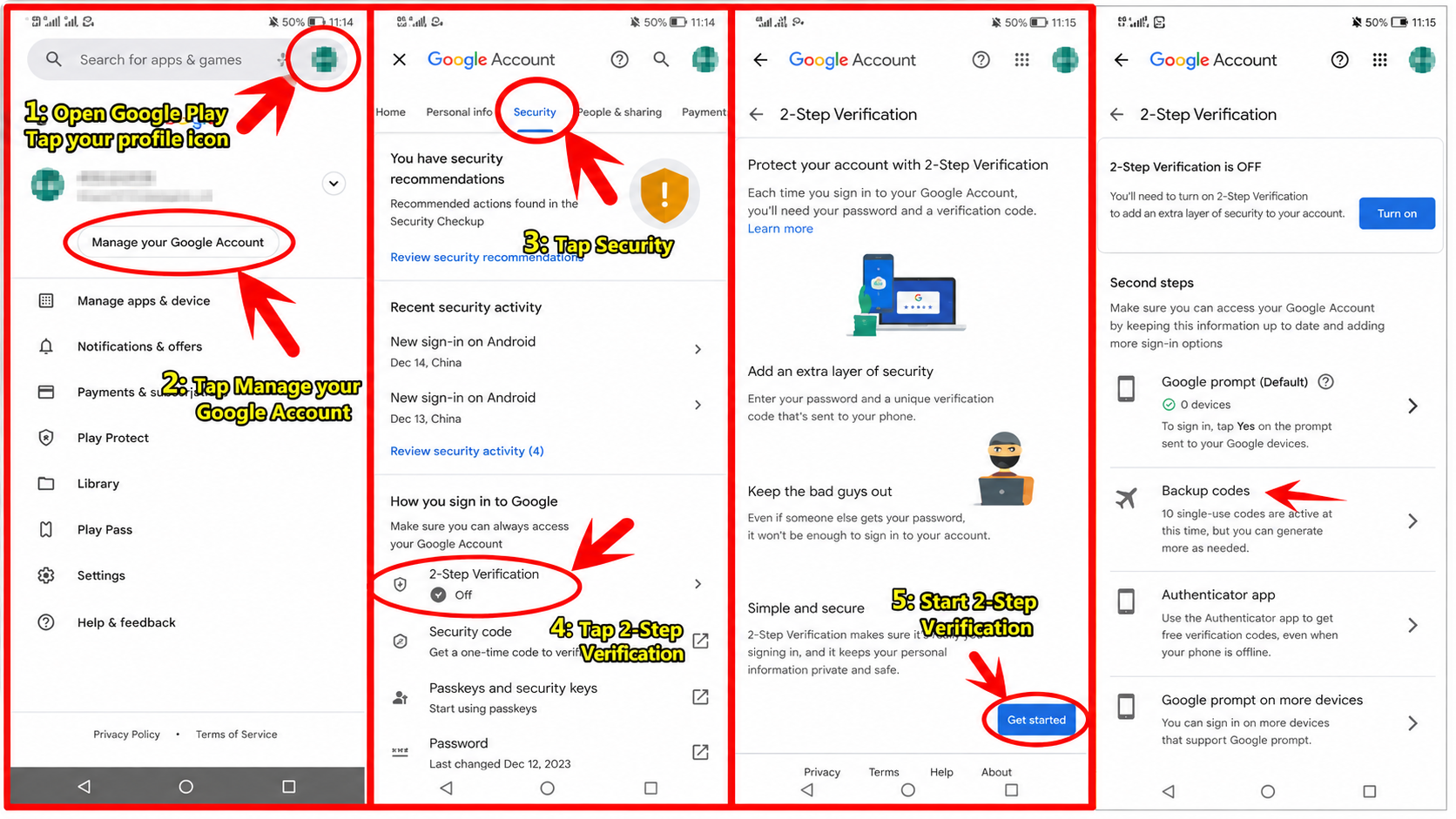
2. Select your profile picture in the top-right corner, then choose "Manage your Google Account". You can also open your Google Account directly.
Step 2: Open your security settings
1. Open "Security & sign-in". Some older interfaces call this section "Security".
2. Under "How you sign in to Google", open "2-Step Verification".
Step 3: Turn on 2-Step Verification
1. Select the option to turn on 2-Step Verification. If Google asks you to verify your identity again, enter your password or use the verification method shown.
2. Follow the prompts to finish setting up your verification method, then confirm that 2-Step Verification is on.
Step 4: Get and save backup codes
1. Find "Backup codes" in your 2-Step Verification settings. Open it and select "Get backup codes".
2. Download, print, or otherwise store the codes safely. Each code works only once. Generating a new set makes the previous set inactive.
3. After saving your codes, keep 2-Step Verification turned on. Do not share your backup codes with anyone.
For details on using and managing backup codes, see Google's official instructions.